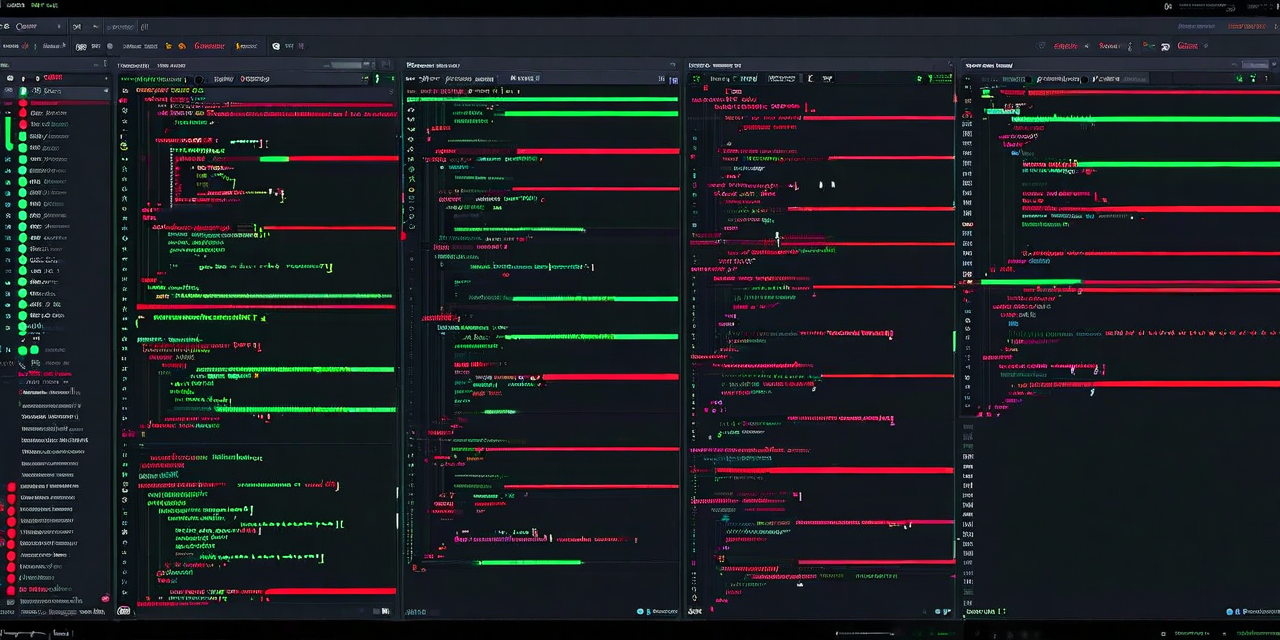
VS Code is the editor for roughly 73% of professional developers — a dominance that makes it the most important integration target in the AI coding tools ecosystem. Every significant AI coding assistant supports VS Code. But there is a substantial gap between having an AI extension installed and having it meaningfully integrated into how you actually work. This guide covers that gap: from initial configuration through advanced workflows that make AI assistance feel like a natural extension of your development process rather than a separate tool you have to remember to use.
Choosing the Right AI Extension
The VS Code Marketplace has dozens of AI coding extensions. They divide into two functional categories, and understanding the difference will help you pick the right combination for your workflow.
Inline completion engines — These integrate at the autocomplete level, providing real-time suggestions as you type. GitHub Copilot, DeepNest's inline mode, and Tabnine are the most widely used. They are low-friction by design: you type, suggestions appear, you accept or ignore them. The best ones feel like having the muscle memory of your entire codebase accessible as you write.
Conversational / command-mode assistants — These provide a chat interface or command palette integration for generating larger blocks of code, explaining existing code, performing refactoring, or answering questions about your codebase. DeepNest's workspace chat mode, GitHub Copilot Chat, and Sourcegraph Cody fall into this category. They require more deliberate interaction but handle tasks that inline completion cannot — generating an entire module from a specification, explaining a complex function you have never seen before, or debugging an error by analyzing the surrounding context.
For most workflows, the optimal setup is one inline completion engine and one conversational assistant. Running two inline completion engines simultaneously creates conflicts and degrades performance; running two conversational assistants is redundant. If you use DeepNest, the inline mode and workspace chat are both included in a single extension — you do not need to install separate tools.
Initial Configuration That Actually Matters
Installing an AI extension and leaving the settings at defaults is leaving significant value on the table. Three configuration decisions have the largest impact on suggestion quality:
Workspace indexing. Most AI assistants can index your codebase to learn your conventions. This is almost always worth doing. Without indexing, the AI generates generic code that matches language idioms but not your team's specific patterns. With indexing, the AI generates code that looks like a team member wrote it — matching your naming conventions, import style, error handling patterns, and testing approach. The indexing process typically takes 2–5 minutes for medium-sized codebases and runs in the background without blocking your work.
Context window configuration. AI extensions use a context window — the code that is visible to the AI when generating suggestions. The default context window is usually the current file. Most extensions let you expand this to include related files, recently opened files, or files that import from the current module. Expanding context dramatically improves suggestion quality for functions that interact with types or utilities defined elsewhere. Enable this setting and accept the modest increase in latency.
Suggestion confidence threshold. Many AI extensions let you configure how confident the AI must be before showing a suggestion. A low threshold means more frequent suggestions but more noise. A high threshold means fewer interruptions but suggestions that are more reliably correct. Most developers find a medium threshold optimal — one that surfaces suggestions for complete function bodies and complex logic but stays silent on trivial completions where the IDE's built-in intelligence is sufficient.
Workflow Integration: Making AI Assistance Automatic
The developers who get the most from AI coding assistants are not those who consciously decide to use the AI for each task — they are those who have restructured their workflow so that AI assistance happens automatically as part of their normal development loop.
Here are the specific workflow integrations that have the highest payoff:
Test file pairing. Configure your AI assistant to automatically open a suggestion panel in the test file whenever you save changes to a source file. DeepNest's VS Code extension supports this via workspace settings. The result is that new functions and changes automatically prompt test generation without requiring you to switch mental contexts or manually trigger the generator.
Comment-driven generation. Adopt the habit of writing a one-line comment describing the function you intend to write before writing the function body. AI inline completion engines treat these comments as specifications and generate corresponding implementations. This habit is productive without AI (comments as specifications force you to think clearly about intent), and dramatically more productive with AI (the specification becomes a generation prompt).
Error context triggering. Many AI extensions can detect when you have an error in the terminal or test runner and automatically provide context from the error alongside a suggestion for a fix. Configure this integration if your extension supports it. Debugging workflows are the second-highest leverage use case for AI coding assistance after boilerplate generation, and automatic error context dramatically reduces the friction of using AI for debugging.
Working with DeepNest in VS Code
DeepNest's VS Code extension exposes four integration points that are worth understanding specifically:
Inline generation: Available via the standard VS Code inline suggestion mechanism. DeepNest's suggestions are context-aware at the workspace level, not just the file level, which means it can generate code that correctly uses types and utilities from other files in your project without requiring explicit imports in your prompt.
Workspace chat: Accessible via the DeepNest sidebar panel or the command palette. The chat interface has access to your entire indexed codebase and can answer questions, generate modules, explain unfamiliar code, and propose refactoring strategies. The most productive use of workspace chat is for generation tasks that are too large for inline completion — full modules, comprehensive test suites, or documentation passes.
Test generation command: A dedicated command palette entry that generates a test file for the current module or function. Running this command at the end of a feature implementation takes under a minute and produces a test suite covering the most important paths. Teams that use this command consistently maintain measurably higher coverage without increasing test-writing time.
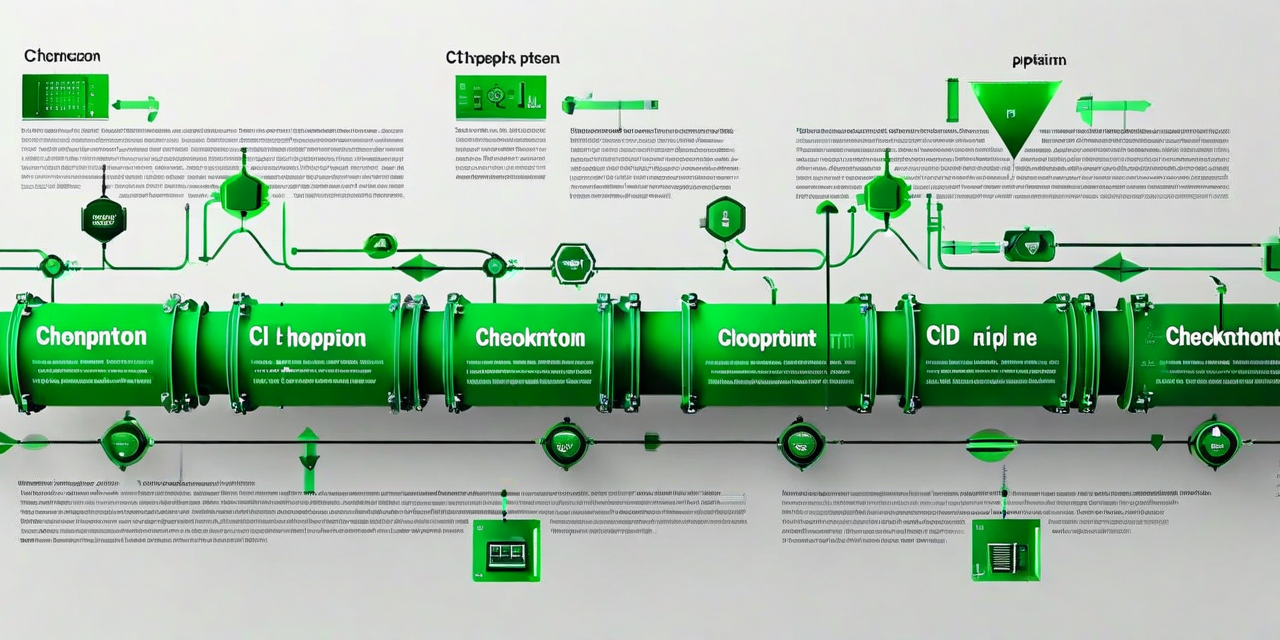
CI/CD integration panel: DeepNest's VS Code extension includes a panel showing the status of your connected CI/CD pipeline and any quality issues flagged on the current branch. This brings pipeline feedback into the editor, reducing the context-switch cost of monitoring build status.
Avoiding the Productivity Traps
Two behaviors reliably prevent developers from realizing the full productivity benefit of AI coding assistants in VS Code, and both are worth consciously avoiding:
Accepting suggestions without reading them. AI-generated code is correct in structure and style the vast majority of the time. It is occasionally wrong about logic, boundary conditions, or domain-specific constraints. Accepting suggestions without reading them trains you to miss these errors until they manifest as bugs. The correct habit is to read the suggestion in the same way you would read a colleague's proposed code change — quickly, but actually reading it.
Using AI for tasks that require architectural judgment. AI coding assistants excel at implementation and struggle at design. Asking an AI to decide the correct architecture for a new service, choose between two competing data models, or determine the right level of abstraction for a shared utility will produce plausible-sounding answers that are not grounded in your system's actual constraints and history. Use AI to implement architectural decisions you have already made, not to make them.
The developers who integrate AI assistance most effectively into their VS Code workflow treat the AI as a fast, knowledgeable implementation partner — someone who can execute clearly-specified work accurately and quickly, but who needs the engineer to own the judgment calls that determine whether the right work is being done at all.